

It is that time of year when every FC 26 player should review their settings and make sure they are using the best options. In this FC 26 guide, I will show you the best controller and camera settings, covering the meta gameplay and camera options to help you win more games.
Looking for ways to build a strong FUT squad at affordable rates? Check out U7BUY to get cheap EA FC 26 coins seamlessly. U7BUY is a trusted platform for buying FC 26 coins, accounts, and even boosting at the best prices. They also offer bonus coins with every purchase, so don’t miss out on building your dream team.
The Importance of Using the Best Settings in FC 26 🔗
In any competitive game, having the best settings that deliver top performance and an optimal gameplay experience is important. This not only helps you play to your fullest potential but also prevents you from using poor settings that could harm your performance.
Using these optimized settings, you can enhance your ability to see the field, switch between players faster, make more precise passes and shots, and limit avoidable errors. Additionally, there are a couple of overpowered settings that are in the meta right now, and if you are not using them, you are losing a significant advantage.
Best FC 26 Controller Settings (Gameplay Settings) 🔗
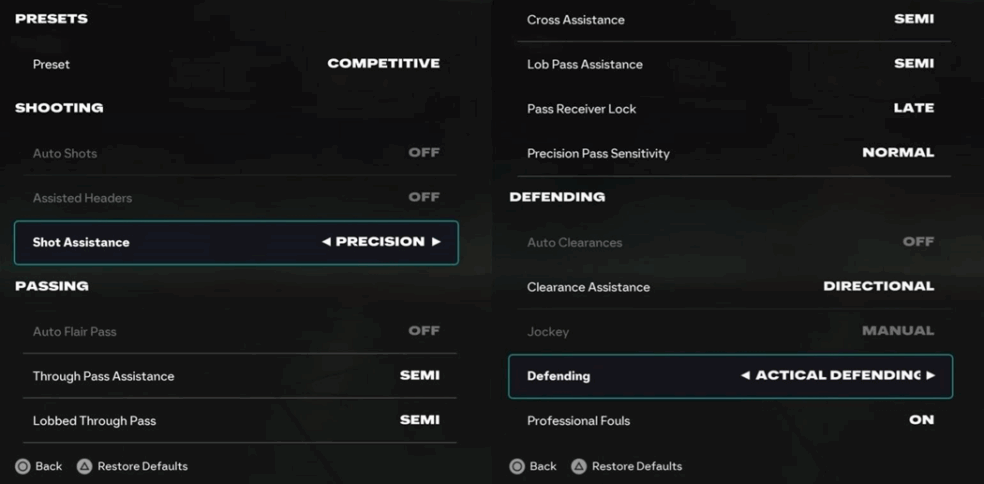
Go to Settings > Gameplay and use the following. If you prefer settings that suit your personal style and improve your gameplay, feel free to use them! I will also explain the reasons behind these settings in each major section so you can choose the options that best fit your playstyle.
Presets
- Preset: Competitive
Shooting
- Auto Shots: Off
- Assisted Headers: Off
- Shot Assistance: Precision
Passing
- Auto Flair Pass: Off
- Through Pass Assistance: Semi
- Lobbed Through Pass: Semi
- Ground Pass Assistance: Assisted
- Cross Assistance: Semi
- Lob Pass Assistance: Semi
- Pass Receiver Lock: Late
- Precision Pass Sensitivity: Normal
Defending
- Auto Clearances: Off
- Clearance Assistance: Directional
- Jockey: Manual
- Defending: Tactical Defending
- Professional Fouls: On
- Pass Block Assistance: On
Switching
- Auto Switching: Air Balls and Loose Balls
- Auto Switching Move Assistance: None
- Right Stick Switching: Classic
- Right Stick Switching Reference: Player Relative
- Right Stick Switching Sensitivity: 4
- Next Player Switching: Classic
- Reaction Time Calibration: On
- Reaction Time Calibration Sensitivity: 6
- Player Lock: On
Dribbling
- Simplified Skill Moves: Off
Goalkeeper
- Save Assistance: Semi
- Camera Pan Speed: Default
Controller Preferences
- Analog Sprint: Off
- Trigger Effect: Off
- User Vibration Feedback: Off
FC 26 Meta Controller Settings Explained 🔗
Competitive and Authentic are two presets in FC 26. If you are playing any online game mode, use Competitive. It makes your gameplay fast-paced and more responsive.
If you are keeping up with the FC 26 Pitch Notes, you might already know that AI assistance in this game is heavily nerfed compared to previous versions. For “Shot Assistance,” it is highly recommended to use Precision instead of Assisted. It may take time to get used to it if you are new, but in the long run, it will be very useful.
Use the passing settings mentioned to make accurate passes with fewer errors. Make sure to use Late for “Pass Receiver Lock.” This helps you make last-moment directional adjustments for better passing chances.
Under Defending, it is highly recommended to use Tactical Defending. This is the best option, making defending easier and more effective, especially since defending is already harder in FC 26. If you prefer more freedom, you can try Advanced Defending.
Most of the Switching settings can remain default. Just make sure Player Lock is ON.
To conclude, set “Simplified Skill Moves” to OFF in Dribbling. The Simplified Skills feature lets you perform advanced skill moves by simply flicking the right analog stick. Although it may be difficult not to choose this option, as it does greatly simplify gameplay, it also limits the number of skill moves you can use and is more likely to cause errors. That’s why I recommend leaving this OFF and practicing skill moves the proper way.
Controller preferences are purely personal, so choose whichever options work best for you.
Best FC 26 Camera Settings 🔗
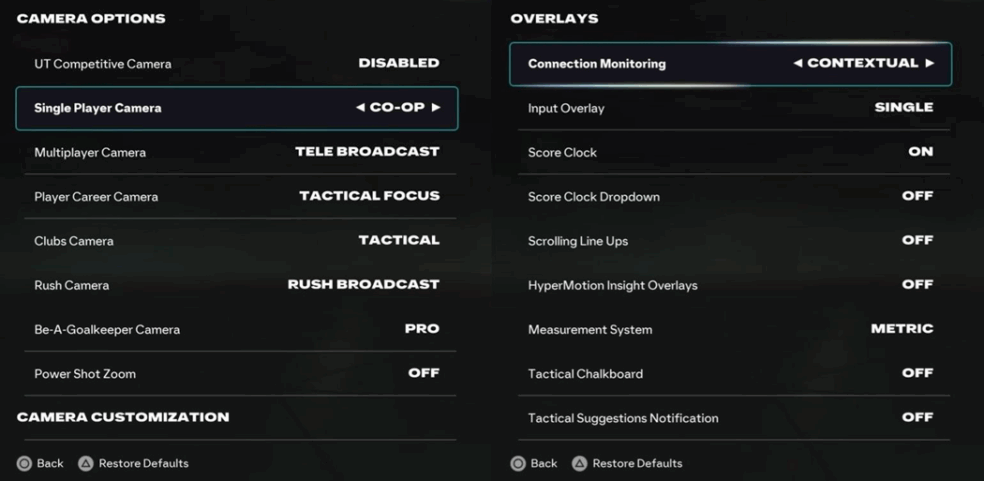
Go to Settings > Camera and use the following settings for the best coverage and smooth gameplay.
Camera Options
- UT Competitive Camera: Personal Preference
- Single Player Camera: Co-op or Tele Broadcast
- Multiplayer Camera: Tele Broadcast
- Player Career Camera: Tactical Focus
- Clubs Camera: Tactical
- Rush Camera: Rush Broadcast
- Be-A-Goalkeeper Camera: Pro
- Power Shot Zoom: Off
Camera Customization
- Custom Camera Settings: Custom
- Height: 20
- Zoom: 0
- Pro Camera Zoom: 10
FC 26 Meta Camera Settings Explained 🔗
Starting with the UT Competitive Camera, this is a new camera mode in FC 26 and is exclusive to Ultimate Team. It is not available in any other game modes. This setting provides good field coverage with fewer distractions. I recommend giving this new camera mode a try and choosing whichever option feels best.
If you are coming from FC 25, you might already be used to Co-op or Tele Broadcast. Both are viable options, so choose whichever fits your playstyle. To select Co-op, you must first disable UT Competitive Camera.
Make sure to turn off Power Shot Zoom. It is distracting and prevents opponents from tricking you into making wrong decisions.
Under Camera Customization, Height: 20 and Zoom: 0 is still the popular choice and is used by many pro players. You can try a value between 10 and 20 for height if you want to experiment.
Visual settings are completely personal preference. You can either use the default settings or choose whichever options are most comfortable.
Under Accessibility, you will find the new High-Contrast Mode. This provides a visual separation between players, the pitch, and other elements, giving much better visibility. It is especially useful for players with low vision.
Turn this setting on to customize pitch saturation, shader visuals, and colors. This is a community-inspired setting and greatly improves visibility. Make sure to give it a try.
Final Thoughts 🔗
That brings us to the end of our best controller and camera settings guide for FC 26. These settings are updated to fit the current meta.
At the end of the day, the best settings are the ones that work best for you. However, if you want to try the settings used by pro players, give these a try. I am sure you will see a noticeable improvement in your gameplay. Have fun gaming!