

Losing your files on a Windows computer is a financial and professional loss that is not easy or quick to recover from. It easily divests you of all the hard work done in the past. And you might lose many potential prospects. There is no easy way to go back from the loss of files in Windows.
Losing the data feels like an experience no one wants to go through. Thankfully, Windows has several built-in functionalities, and you can also refer to effective external sources to recover lost files on your Windows system. Here is detailed information on ways, including entire step-by-step assistance for each, to bring your files under the best possible protection.
Following these methods systematically will boost your chances of retrieval. Remember that acting quickly and avoiding writing new data to the drive are two crucial steps for a successful recovery. With perseverance and a good approach, what seems lost may just be a matter of a few clicks away from restoration.
Common Causes of File Loss in Windows 🔗
Knowledge of the causes of loss can significantly help in avoiding them in the first place. Here are some common causes of file loss in Windows:
- Human Error: Files are often lost due to accidental deletion by the user. It mostly occurs unintentionally when the user erases data or reforms the storage.
- Hardware Failure: It is the malfunctioning of the physical components of a device. Overheating, power surges, damage, and wear and tear are some of the reasons for hardware failure.
- Software Corruption: Software Corruption occurs when software code or data becomes corrupted. It is also called Silent Data Corruption (SDC) or a Software Error.
- Malware: Malicious Software is a type of software designed to gain unauthorized access to computer systems. Cybercriminals commonly use this method.
- Other Factors: Additionally, factors such as sudden power disruptions, natural disasters, liquid spills, or theft of the device can also cause data loss.
Methods to Recover Lost Files In Windows 🔗
- Use A File Recovery Tool
If none of these options work, try using a trusted and credible professional data recovery software like Stellar Data Recovery, which performs a deep scan to recover deleted files.
- For example, try Stellar Data Recovery Professional for Windows. Download it from the official site and install it on a different drive.
- Launch the program and select the type of file (or “All Files”)
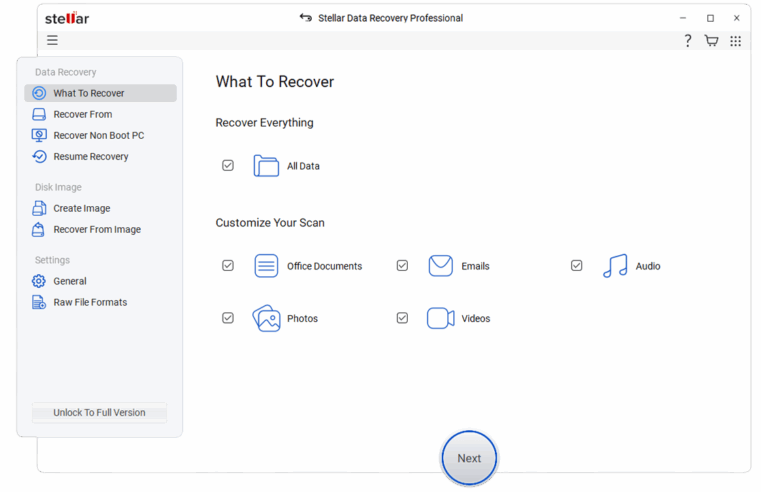
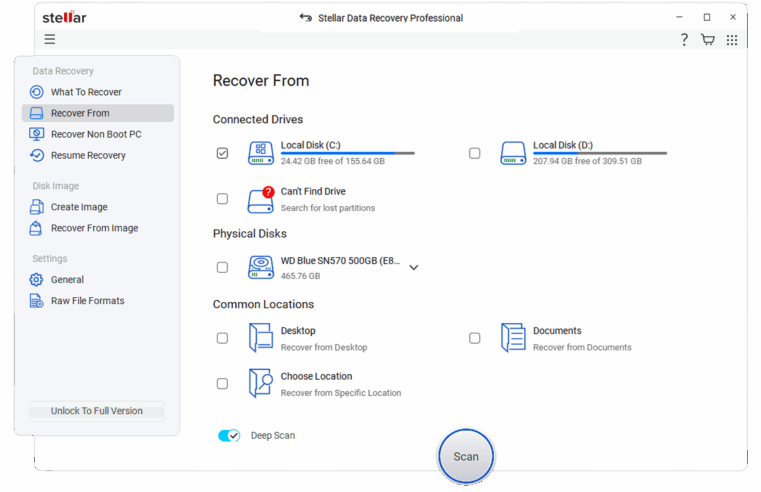
- Select the drive and enable Deep Scan for thorough recovery.
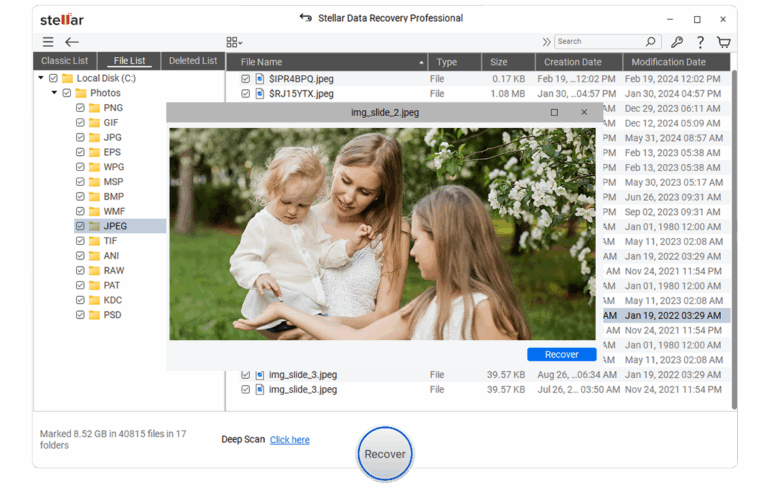
- Preview the files, select those to recover, and save them to a safe destination drive.
- Use File History Backup
File History is a built-in function of Windows that automatically backs up files located in Documents, Pictures, the desktop, and other libraries. This makes it possible to restore previous versions of the file easily, but it had to have been set.
- Search “File History,” open it from the Windows search bar.
- Connect the external backup drive if it is not connected yet
- Click “Restore files from current backup” and navigate to the folder where the file was lost.
- Select the restore option after clicking the file, but not before choosing to keep two or just one version as prompted.
- Restore from Windows Backup
If you’ve an idea of Backup and Restore, then this method promises to recover your files with these easy steps.
- Type in ‘Backup and Restore’ in your search bar and select the option.
- Click on either ‘Restore my files’ or ‘Restore files from a backup’.
- Continue following the wizard. You may now be asked to select where you want to save your backup (i.e., external drive or network).
- Go through or look for lost files in the backup.
- Pick the files, choose the restore location (original or new), and click ‘Restore’.
- Check the Recycle Bin
The Recycle Bin is the first, best, and easiest place to check for deleted files because Windows really doesn’t remove files instantly.
- Open the Recycle Bin by double-clicking the icon located on your desktop.
- To search, check the list of deleted files for a file you require. Type in the file name in the search window along the top of the Recycle Bin.
- Then, right-click on the file and select ‘Restore’. The deleted picture (and file) will be restored to its original location.
- If you’re still unable to recover, then check whether the Recycle Bin was emptied recently.
- Run CHKDSK Command
CHKDSK examines and fixes disk errors that could exist in the case of file hiding or corruption, and potentially recovers disorganized data from rogue sectors.
- Open the Command Prompt, type in “cmd,” right-click, and click on “Run as administrator.”
- Then, at the command prompt, enter chkdsk C: /f /r (C: being the drive affected; and where /f corrects errors and /r recovers readable information).
- If the drive is occupied, schedule it for the next restart by pressing Y and then reboot.
- Perform System Restore
With System Restore, you can recover files that were lost due to software problems or updates, as it reverts your PC to a previous date.
- In Start, search for “Create a restore point”, click on it, and select System Protection.
- Choose a restore point before the file loss and click Next.
- Confirm and let the system complete the restoration; reboot if prompted to do so.
- Check your folders after restoration. Remember, personal files are not affected, but any recent changes are undone.
- Seek Professional Data Recovery Services
In extreme cases, data can be retrieved from drives with severe physical damage or those that have been encrypted using specialised hardware by professionals.
- Search for reputable services online, check reviews, and ensure that they offer no-data-no-charge policies.
- Contact them and explain the problem, storage type, and importance of the data.
- Ship or drop off the device, they’ll diagnose (often free) and quote recovery.
- Receive files in the safe; charges may vary from $100 to $2000 based on complexity.
Tips to Prevent Future File Loss 🔗
- Ensure to check for regular backups, as reliable hardware goes a long way in protecting your data.
- Keep your data encrypted so that cyber criminals find it difficult to access.
- Install Security Software to protect the data and system from any kind of threats.
- You can do thoughtful planning to protect your data from any disaster. Keep some of your backups offline.
- Data Loss Prevention Software can be installed. It allows an extra layer of expert protection for your files.
- Sometimes the traditional antivirus software is not efficient enough. You can go for Advanced Malware Protection, which can also block unknown threats that conventional antivirus software often misses.
- Ensure your backup solution is tested regularly.
Final Words 🔗
There is a high probability of recovering your lost files from Windows if you use one of the methods mentioned above. These simple ways include checking your Recycle Bin, using a file recovery tool like Stellar Data Recovery, and, if things go out of your hands, immediately consulting a professional.
Be proactive and digitally educated to minimise the risk. If you cannot retrieve the files, assess their worth in terms of how much they meant to you; recreating them is sometimes the best option. Always act quickly, as it increases recovery chances.